
This blog was originally written for Team Copilot and is republished here on my personal website.
Last month, I wrote about how Copilot supports the full meeting lifecycle. From preparing in Outlook to structured summaries in Teams and better follow-up afterwards. What stood out to me while writing that blog was how Copilot is slowly moving closer to the core of our daily workflows. Not in big, dramatic steps, but in small improvements that make work feel more intentional.
This month, I want to continue that line of thought. Because meetings are only part of the story; the real work happens in between. In documents that evolve over time, drafts that live in our personal workspace and spreadsheets that we keep refining.
Fittingly for February, I see a bit of a theme emerging. Not in the sense of hearts and flowers, but in the idea of commitment. Copilot is no longer just showing up for quick, one-time tasks. With the introduction of OneDrive agents and the rollout of agent mode, it is starting to stay longer, to understand context better and to support the process, not just the outcome.
In this blog, I want to walk you through these two updates. What they are, where you can find them, how you can use them, and what they realistically mean for your daily work. Not as a big transformation story, but as a very practical evolution of how Copilot continues to integrate into Microsoft 365.
OneDrive agents
Over the past year, we have seen more and more possibilities when it comes to agents in Microsoft 365. Until recently, if you wanted to create an agent, you were mainly looking at SharePoint agents or building something through Agent Builder connected to SharePoint content. But this month, something changed.
With the introduction of OneDrive agents, Microsoft added a new option that feels much more personal. Instead of building an agent on top of a SharePoint site, you can now create one directly from files in your own OneDrive. And for many professionals, that is where most real work actually happens.
If I look at the organizations I work with, I see that SharePoint is often structured and governed. It is where finalized documents live. But OneDrive is different, this is the place where drafts are created and where ideas take shape. It is a more personal workspace, and that is exactly why OneDrive agents are interesting.
Instead of opening five different documents and manually connecting the dots, you can now group related files in OneDrive and let Copilot understand them together. You create an agent based on those selected files, and from that moment on you can ask questions across the entire set. Not about one document, but about the story between them.
Imagine you are running a project. You have a proposal, a few status updates, meeting notes and a risk overview. Normally, if someone asks what decisions have been made so far or which risks are still open, you would start clicking through documents. With a OneDrive agent, you can simply ask the question. Copilot answers based on the combined context of those files. In many adoption sessions, I see hesitation around AI pulling in too much context. Being able to clearly define the scope lowers that barrier and makes experimentation feel safer.
Or think about an HR professional working on a new policy. There are multiple drafts, feedback documents and notes from stakeholder sessions. Instead of re-reading everything to identify recurring themes or inconsistencies, you can ask the agent to surface them for you. It becomes easier to refine your work because you are not starting from scratch every time.
What I like about this update is that it lowers the barrier. Before, agents felt like something you set up for a team, process or department. Now it is something you can use for your own productivity and something you can play with before sharing with your colleagues. You do not need to build a structured SharePoint environment first; you can simply start with the files that are already part of your daily work.
You can create a OneDrive agent directly from OneDrive on the web. When you select a set of related files, you will see the option to create an agent from them under the Copilot button. You give it a name that makes sense for your context, and then you can start interacting with it in natural language.
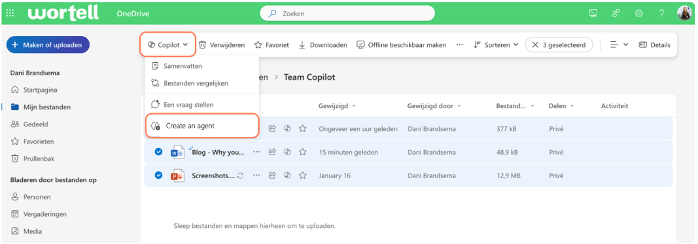
It is good to keep a few practical considerations in mind. A OneDrive agent works best when you keep the scope focused, as there is currently a limit of 20 files you can include, which means it is not intended to replace a full organizational knowledge base. The quality of the answers also depends heavily on the quality and structure of your documents. If your files are inconsistent, outdated or unclear, the output will reflect that. Permissions continue to apply as well, so access to underlying files remains governed by Microsoft 365 security settings. And finally, while this feature makes it easier to navigate your own content, it does not replace good document management. It supports your structure, but it does not create it for you.
Agent mode
While OneDrive agents focus on working across multiple files, agent mode is about what happens inside a single document. Up until now, most of us have used Copilot in a fairly familiar way. You ask something, Copilot responds. You adjust your prompt, it refines the answer. It works well, but it still feels like separate interactions. Almost like short conversations that start and stop.
Agent mode is designed to change that. Instead of responding to one isolated prompt, Copilot becomes more embedded in the process itself. It helps you draft, restructure, analyze and refine within the same flow. Less transactional, more iterative and more present while you are working.
Agent mode in Word and Excel is currently rolling out, and this month agent mode in PowerPoint on the web is being introduced as well. To be completely transparent, I do not have agent mode active in my own environment yet and so I have not been able to test it hands-on myself. I am really curious and excited to see how it behaves in practice once it becomes available in my tenant. Based on what has been announced, it should be rolling out this month, so hopefully I can start experimenting with it soon!
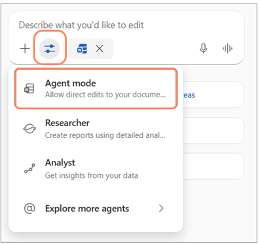
From what we know so far, agent mode lives directly within the Copilot experience in Word, Excel and PowerPoint. Instead of generating a single output, Copilot helps you iterate step by step within your document. That means you can start with a rough draft, improve structure, adjust tone and validate content without constantly starting over. The agent mode can be found under the toggles within the chatbox.
In Word, I can imagine this being useful when working on proposals or longer reports. Not just asking for a first draft, but refining sections, improving clarity and checking alignment throughout the document. In Excel, I expect it to be helpful when working with more complex datasets. Not only explaining formulas, but supporting analysis in a more continuous way. And in PowerPoint, it will likely support shaping the storyline of a presentation, not just filling slides with text.
What I appreciate about this direction is that it focuses on the process, not just the output. Many people do not struggle with starting a document. They struggle with structuring it, improving it and making it consistent. If agent mode truly supports that iterative phase, it could make a real difference in how we experience working with Copilot.
At the same time, it is important to approach it with realistic expectations. It is still Copilot and therefore still depends on your input and your guidance. It will not replace your expertise, but it may reduce friction in the refinement phase of your work.
As soon as agent mode becomes available in my own environment, I will definitely start experimenting with it and share my experiences. For now, it is one of those features that clearly shows where Copilot is heading: deeper into the core of our daily tools, supporting not just isolated tasks, but the way we build and improve our work step by step.
Closing thoughts
Maybe that is the February theme after all. Not falling in love with a flashy feature, but slowly building a working relationship that makes your day a little easier. OneDrive agents help you understand your work better. Agent mode helps you shape it more thoughtfully. Together, they show how Copilot is steadily moving closer to the heart of how we create.
I am especially curious to start experimenting with agent mode once it becomes available in my own environment. As with most Copilot updates, the real value only becomes clear when you start using it in your own context. So, if you see these features appear in your tenant this month, I would encourage you to try them in a real project. Not as a test, but as part of your actual workflow. That is usually where the most interesting insights appear.



 Dani Brandsema