This blog was originally written for Team Copilot and is republished here on my personal website.
For most of us the inbox is where the workday begins and that start is not exactly calm. You open Outlook, see forty unread messages, three meeting requests and a thread that has grown to seventeen replies overnight, and before you have even had your coffee, you are already in reactive mode.
That is not a new problem, but what is changing is how Copilot is starting to address it. Not with one big feature, but with a set of smaller updates that together shift something important: the way we decide what deserves our attention, and when.
In this blog, I want to walk through a few of those updates. What they do, how they work in practice, and what they actually mean for the way we start our day.
Prioritize my inbox: letting Copilot do the sorting
The first update is one I have been curious about for a while: Prioritize my inbox. After months of waiting the feature is finally here! The idea is straightforward. Copilot reviews your incoming emails and assigns a priority, high or low, based on priorities you can choose.
Emails marked as high priority get a small up arrow in your message list. The first line of the email is replaced with a brief AI-generated summary, and when you open a message, Copilot shows a short explanation of why it considers this email important. You can also sort or filter your entire inbox based on these priorities, which means you can choose to only see your high priority messages first thing in the morning.
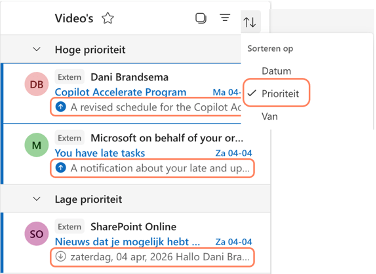
What I like about this feature is that it does not just sort, it explains. When Copilot tells you why something is flagged as important, it gives you the context to agree or disagree, and to teach it something new. Because that is really where the value builds over time: in the customization. You can go to Settings > Copilot > Prioritize and add your own priorities in natural language. Things like “emails from my manager are always high priority” or “flag anything that mentions Project X.” The more specific your instructions, the better the results.
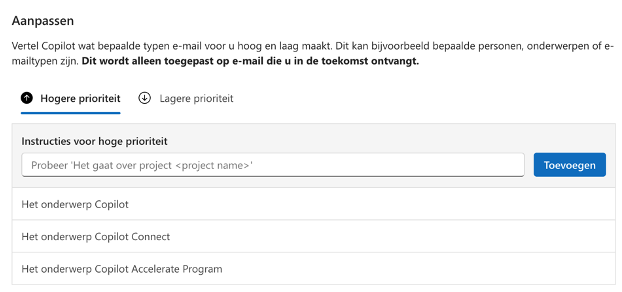
There are a few things worth being realistic about. The feature currently works in the new Outlook for Windows and Outlook on the web. So, if you are primarily working in the classic Outlook, this feature is not for you. It also only processes new incoming emails, not the ones already sitting in your inbox. And it does not evaluate emails that land in subfolders, meeting invitations, or out-of-office replies.
That last point is actually a good reminder for adoption: this feature rewards a clean inbox setup. If you have dozens of rules sending emails to subfolders, Copilot will not touch those. It supports your structure, but it does not create it for you.
Still, for anyone who feels like their inbox is running them rather than the other way around, this is a genuinely useful starting point.
Planning a meeting from Copilot Chat: the one that surprised me most
The second update is honestly the one I find most impressive in daily use, partly because it feels so natural that you almost forget you are doing something new.
From the general Copilot Chat, you can simply ask to schedule a meeting. Something like “plan a 60 minute 1:1 with Thomas next week.” Copilot checks the calendars of everyone involved, finds a suitable time slot, and proposes options before putting it on the agenda. But it goes further than that. You can also ask Copilot to book a physical meeting room as part of the same request, which means the coordination that used to take several back-and-forth steps now happens in a single conversation.
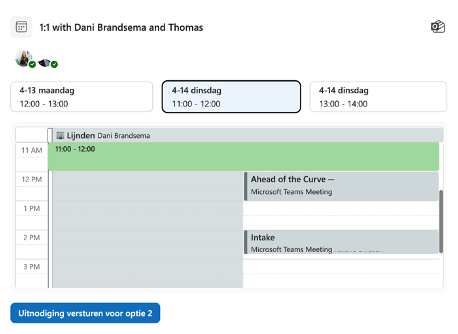
I have been using this myself and what stands out is how little effort it takes. You stay in one place, describe what you need, and Copilot handles the logistics. No switching between calendar view and contact search, no manually checking who is available when.
What makes this work well is that Copilot Chat is increasingly grounded in your full work context: your inbox, your calendar, your meetings. That grounding is what allows it to give you meaningful suggestions rather than generic ones. It knows your schedule and who you work with. That combination starts to feel less like using a tool and more like briefing an assistant.
Copilot in shared and delegate mailboxes
A smaller but practically relevant update: as of April 2026, Microsoft 365 Copilot is also available in shared and delegate mailboxes. For anyone who manages a team inbox or works as an executive assistant with access to someone else’s calendar and mail, this is a meaningful addition. Copilot features work directly in those mailboxes without any special prompts or workarounds, and conversation history stays linked to your own primary account.
It is a quiet update, but one that removes a friction point that has been there since Copilot launched.
Closing thoughts
What connects these updates for me is not the technology itself. It is the shift in how we can start our workday. Instead of opening Outlook and immediately being pulled into whatever landed overnight, these features give you a way to step back for a moment and decide where your attention actually belongs.
Prioritize my inbox helps you see what matters before you start reading. Meeting scheduling from chat removes the coordination overhead that eats into focused time. Together, they point in the same direction: Copilot as something that quietly handles the administrative layer, so you can focus on the work itself.
That said, none of these features work on autopilot. Prioritize my inbox needs your priorities and meeting scheduling still requires you to confirm before anything is sent. The human judgement stays in the loop, which I think is exactly right.