This blog was originally written for Team Copilot and is republished here on my personal website.
Copilot Notebooks has quietly become one of my favorite places to work inside Microsoft 365. For a while, the idea was fairly simple. You gather a set of related files, references and chats in one workspace, and Copilot reasons over exactly that content. It is scoped, focused and grounded in what you choose to include.
What I find interesting about the latest wave of updates, currently rolling out through the Frontier program, is that Notebooks is starting to do more than gather and answer. It is becoming a place where you can actually explore and learn from your material. I have been testing these features in my own environment, and in this blog I want to walk you through what they do, where they work well, and where they still need some time.
A quick reminder of what Notebooks is
For anyone who has not stepped into Notebooks yet, here is the short version. A Copilot Notebook is a scoped workspace built around a specific project or topic. You add references such as Word documents, PowerPoint decks, PDFs and OneNote pages, and Copilot uses that defined set of content as the basis for its answers. Everything you create along the way, from chats to generated outputs, stays together in one place.
That scoping is the part I keep coming back to, and it is also where one of the new updates becomes relevant.
Choosing your sources
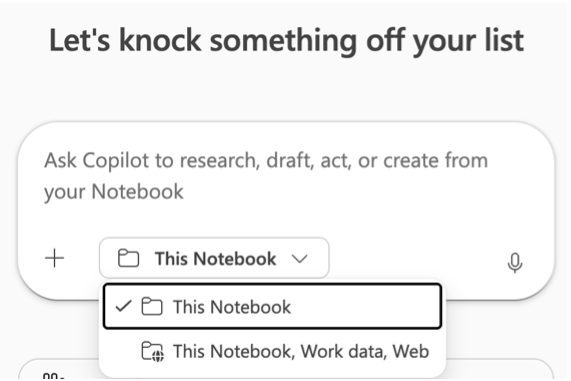
One of the new options lets you decide what Copilot draws from when you ask a question. You can keep it to the notebook itself, or you can broaden the scope to include your work data and the web.
The web option in particular can be genuinely useful. Being able to combine your own project context with current information from the web opens up a lot of practical scenarios.
There is one thing that I find less convenient at the moment. You cannot choose web only or work data only. It is either just the notebook, or the notebook together with both work data and the web. For me that is a real limitation, because quite often I would like to add the web while leaving work data out. The whole reason I appreciate a notebook is that it lets me scope the context. The moment work data is switched on, that careful scoping is essentially gone. I hope this becomes more granular over time, because that control is exactly what makes Notebooks feel safe to experiment with.
The study guide
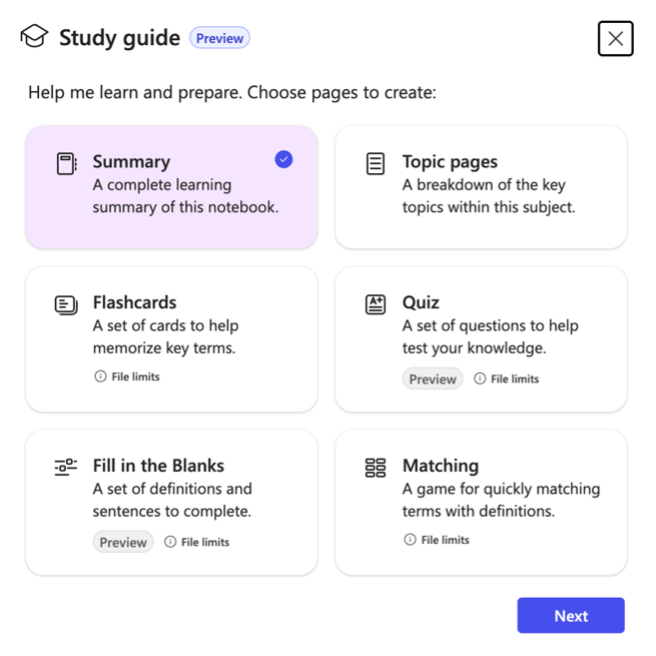
This is the update I have gotten the most value from so far. The study guide has grown from a simple summary into a proper set of learning tools. Alongside the Summary and Topic pages you already had, you now get Flashcards, a Quiz, Fill in the blanks and a Matching exercise.
I used these to prepare for a Microsoft certification, and they fit that purpose remarkably well. Studying for an exam usually means turning a large pile of material into something you can actually test yourself against, and this does a lot of that work for you. It is easy to use, and everything you generate is saved under Created content, so you can navigate back to it later instead of regenerating it every time. For something you return to across several study sessions, that matters more than it sounds.
A few honest forewarnings: the newer formats only work with Word, PowerPoint, PDF and unprotected text files. And if your references are very long, Copilot may only use the first 100,000 characters across all of them. For most focused notebooks that is plenty, but it is worth knowing if you are working with a large set of documents.
Mind maps
Mind maps let you visualize the content of your notebook, explore the different nodes and dive deeper through chat. The idea is appealing, especially for getting a sense of how a complex topic hangs together.
In practice, this is the feature that still feels the earliest to me. At the moment it is only available in English, and the navigation takes some getting used to. You end up clicking around a bit more than feels natural, and it does not yet work as smoothly as the rest of Notebooks. There is also a current limitation that generated mind maps are private to you and kept for thirty days, with sharing and permanent storage planned before general availability. Personally I do not mind the private part, but the overall experience tells me this one is still finding its feet. I am curious to see how it develops.
Audio overview
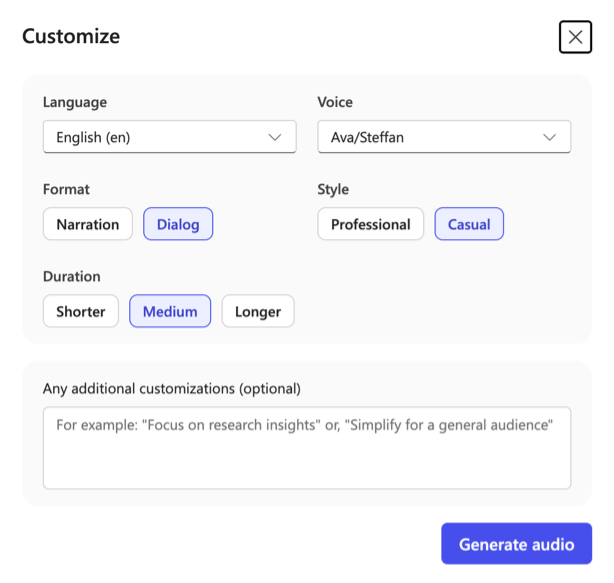
Audio overview is not new, but it has quietly become one of the features I really love. It turns your notebook into a spoken overview, almost like a personal podcast, and you can choose the style yourself.
I use it in two ways: when I want to get up to speed on a new project without reading every single document, I let the audio overview give me the overall picture first. And for those Microsoft certifications, where the amount of text can be overwhelming, I simply play the audio while I am at the gym or out walking. It turns study time into something I can fit around the rest of my day, and that has made a real difference in how much I actually get through.
A note on availability
It is worth being clear about the status of these features. They are currently rolling out through the Frontier program, enabled by default and without admin action, and they will move to general availability on their own timelines. If you are not in Frontier yet, you may not see all of them straight away.
Closing thoughts
What stands out to me about this wave of updates is the shift in what Notebooks are used for. It started as a place to gather context and ask questions but now it is becoming a place to genuinely work through and learn from your material.
The most natural scenarios I see are onboarding a new colleague, getting yourself up to speed on a complex project, or preparing for a certification. In all of those, the value is not just having the information in one place, but being able to explore it in the way that suits you, whether that is a quiz, a mind map or a podcast on a walk.
Not everything is polished yet. The source options could be more granular, and mind maps still need some refinement. But the direction is clear, and as with most Copilot features, the real value only becomes visible once you start using it in your own context. So if these features have reached your tenant, I would encourage you to pick a real project or topic and try them there.




 Dani Brandsema